JSONata transformation
A mapping describes how the elements of two models relate to each other. A transformation puts that mapping to work: it takes an actual message in the source format and produces the equivalent message in the target format.
In Semantic Treehouse you write the transformation rules in JSONata, store them with a mapping version, and run them on messages in the Transformer screen.
The Transformer is an optional feature. If the Transformer item is missing from the left menu, it is not enabled in your environment. A platform administrator can enable it for you.
What is a transformation?
Organizations rarely store their data in the exact structure that a standard prescribes. A webshop may call a field orderId where the standard calls it orderNumber, keep the first and last name apart where the standard expects one name, or use its own unit codes. A transformation is a set of rules that converts a message from one structure into the other, so the same information can be exchanged without rebuilding the systems on either side.
{ "orderId": "ORD-2026-0042", "customer": { "firstName": "Jane", "lastName": "Doe" } }
{ "orderNumber": "ORD-2026-0042", "buyer": { "name": "Jane Doe" } }
Typical things a transformation does:
- Rename fields and move them to another place in the structure
- Combine several values into one, or split one value into several
- Translate codes from one codelist to another
- Calculate values, such as line amounts and totals
- Leave out data that has no place in the target
How transformation relates to mapping
A mapping and a transformation describe the same relation between two models, each at a different level:
| Mapping | Transformation | |
|---|---|---|
| Works on | The models: elements of the source and target specification | Message instances: actual data |
| Answers | Which source element corresponds to which target element, and how closely? | How is each target value computed from the source message? |
| Consists of | Mapping items with a status, predicate, justification and annotations | Executable rules |
| Used for | Documenting, discussing and reviewing the alignment | Converting messages and testing the alignment on real examples |
In Semantic Treehouse, transformation rules belong to a mapping version:
- Like the mapping itself, a transformation works in one direction: from source to target.
- The rules are provided by you. Semantic Treehouse does not generate them from the mapping items.
Running the rules on example messages is a good way to test the mapping. A target message that does not validate often points at a mapping item that is missing or incomplete.
What is JSONata?
JSONata is an open-source query and transformation language for JSON data. It is to JSON roughly what XPath and XSLT are to XML. A JSONata expression describes what the output looks like and where each value comes from.
JSONata offers:
- Paths to select values from the source message, such as
customer.email - Constructors to build new objects and arrays
- Operators and functions for text, numbers, dates, conditions and aggregation
Because JSONata works on JSON, the source message must be JSON and the transformed message is JSON as well. XML and RDF messages cannot be transformed with JSONata rules.
The JSONata documentation describes the full language. The JSONata Exerciser lets you try out expressions in your browser.
JSONata by example
All examples below are applied to this source message, an order from a webshop:
{
  "orderId": "ORD-2026-0042",
  "orderDate": "2026-03-14",
  "customer": {
    "firstName": "Jane",
    "lastName": "Doe",
    "email": "jane.doe@example.com",
    "country": "NL"
  },
  "lines": [
    {
      "sku": "A-100",
      "description": "Oak plank 2 m",
      "quantity": 4,
      "unit": "piece",
      "unitPrice": 12.5
    },
    {
      "sku": "B-220",
      "description": "Wood screws",
      "quantity": 1,
      "unit": "box",
      "unitPrice": 7.95
    },
    {
      "sku": "C-310",
      "description": "Wood glue 750 ml",
      "quantity": 2,
      "unit": "piece",
      "unitPrice": 6
    }
  ]
}
Selecting values
A path selects values by field name. When a path runs through an array, it returns the value of every item. A condition between square brackets filters the items.
| Expression | Result |
|---|---|
orderId | "ORD-2026-0042" |
customer.email | "jane.doe@example.com" |
lines.sku | ["A-100", "B-220", "C-310"] |
lines[0].description | "Oak plank 2 m" |
lines[quantity > 1].sku | ["A-100", "C-310"] |
lines[unit = "box"].sku | "B-220" |
Combining, calculating and converting
| Expression | Result | Explanation |
|---|---|---|
customer.firstName & " " & customer.lastName | "Jane Doe" | & joins text |
$uppercase(customer.lastName) | "DOE" | Function names start with $ |
$substring(orderDate, 0, 4) | "2026" | Part of a text |
lines.(quantity * unitPrice) | [50, 7.95, 12] | A calculation for every order line |
$sum(lines.(quantity * unitPrice)) | 69.95 | Aggregation over all order lines |
$count(lines) | 3 | Number of order lines |
customer.country = "NL" ? "Domestic" : "Export" | "Domestic" | Condition: if, then, else |
$fromMillis($toMillis(orderDate), "[D01]-[M01]-[Y0001]") | "14-03-2026" | Another date format |
Building the target structure
Curly braces build a new object. Each field gets a name and an expression that provides its value:
{
  "orderNumber": orderId,
  "buyer": {
    "name": customer.firstName & " " & customer.lastName
  }
}
{
  "orderNumber": "ORD-2026-0042",
  "buyer": {
    "name": "Jane Doe"
  }
}
Put an object after a path to build one object for every item of an array:
lines.{
  "itemId": sku,
  "lineAmount": quantity * unitPrice
}
[
  { "itemId": "A-100", "lineAmount": 50 },
  { "itemId": "B-220", "lineAmount": 7.95 },
  { "itemId": "C-310", "lineAmount": 12 }
]
Translating codes
When the source and target use different codelists, $lookup translates a code with a small table. Here the unit names of the webshop are translated to the unit codes of the target:
lines.{
  "itemId": sku,
  "unitCode": $lookup({ "piece": "C62", "box": "BX" }, unit)
}
[
  { "itemId": "A-100", "unitCode": "C62" },
  { "itemId": "B-220", "unitCode": "BX" },
  { "itemId": "C-310", "unitCode": "C62" }
]
Things to keep in mind
- Missing data is left out, not reported. A path that matches nothing gives no value, and a field without a value is omitted from the result. The message above has no
customer.phone, so{ "phone": customer.phone, "email": customer.email }results in{ "email": "jane.doe@example.com" }. Validate the transformed message to find mandatory elements that are missing. - A single result is not an array.
lines.skureturns an array for the order above, but a plain text for an order with only one line. Wrap the expression in square brackets, as in[lines.sku], when the target always expects an array. =compares and&joins text. Writing==is a syntax error, and+only works on numbers.- Field names with special characters need backticks. Write
`order-type`to select a field namedorder-type.
Using JSONata in Semantic Treehouse
Adding transformation rules to a mapping
Adding transformation rules requires the Maintainer role for the mapping specification. See Roles and permissions for details.
- Edit the mapping version, as described in Mappings.
- Open the Transformation tab.
- Click Add transformer and fill in the fields described below.
- Click Save.
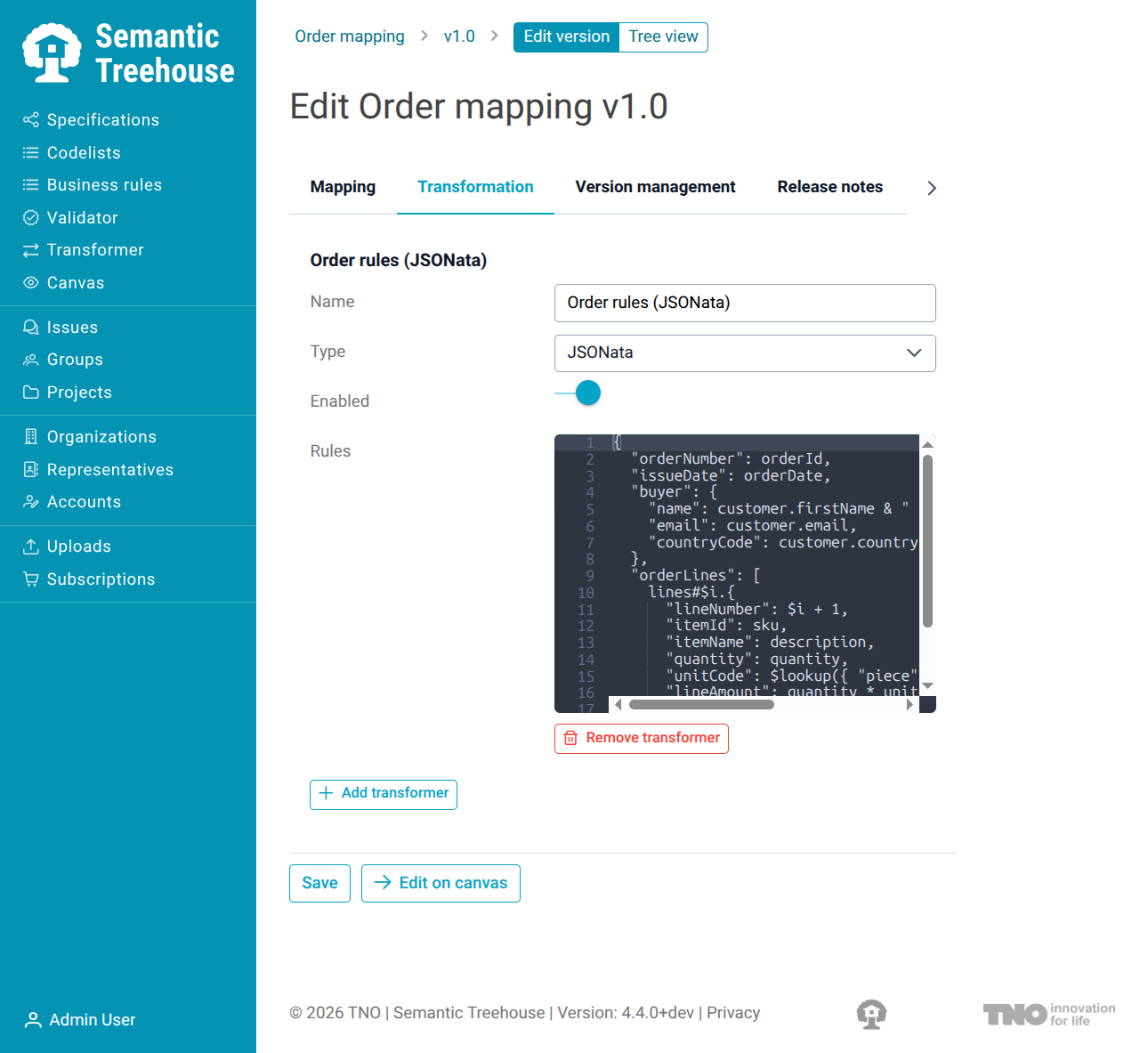
| Field | Description |
|---|---|
| Name | A name for this set of rules. Users see it in the Transformer dropdown of the Transformer screen. |
| Type | Select JSONata. Depending on your environment, other transformer types may be listed as well. |
| Enabled | Only enabled transformers are offered in the Transformer screen. Switch this off while the rules are work in progress. |
| Rules | The JSONata expression that builds the target message from the source message. |
A mapping version can have several transformers. Use Remove transformer to delete one.
The rules below transform the webshop order from the examples above into an order message. They are the rules used in the screenshots on this page:
{
  "orderNumber": orderId,
  "issueDate": orderDate,
  "buyer": {
    "name": customer.firstName & " " & customer.lastName,
    "email": customer.email,
    "countryCode": customer.country
  },
  "orderLines": [
    lines#$i.{
      "lineNumber": $i + 1,
      "itemId": sku,
      "itemName": description,
      "quantity": quantity,
      "unitCode": $lookup({ "piece": "C62", "box": "BX" }, unit),
      "lineAmount": quantity * unitPrice
    }
  ],
  "totalAmount": $round($sum(lines.(quantity * unitPrice)), 2)
}
Transforming a message
The following steps assume you are logged in and have access to the mapping.
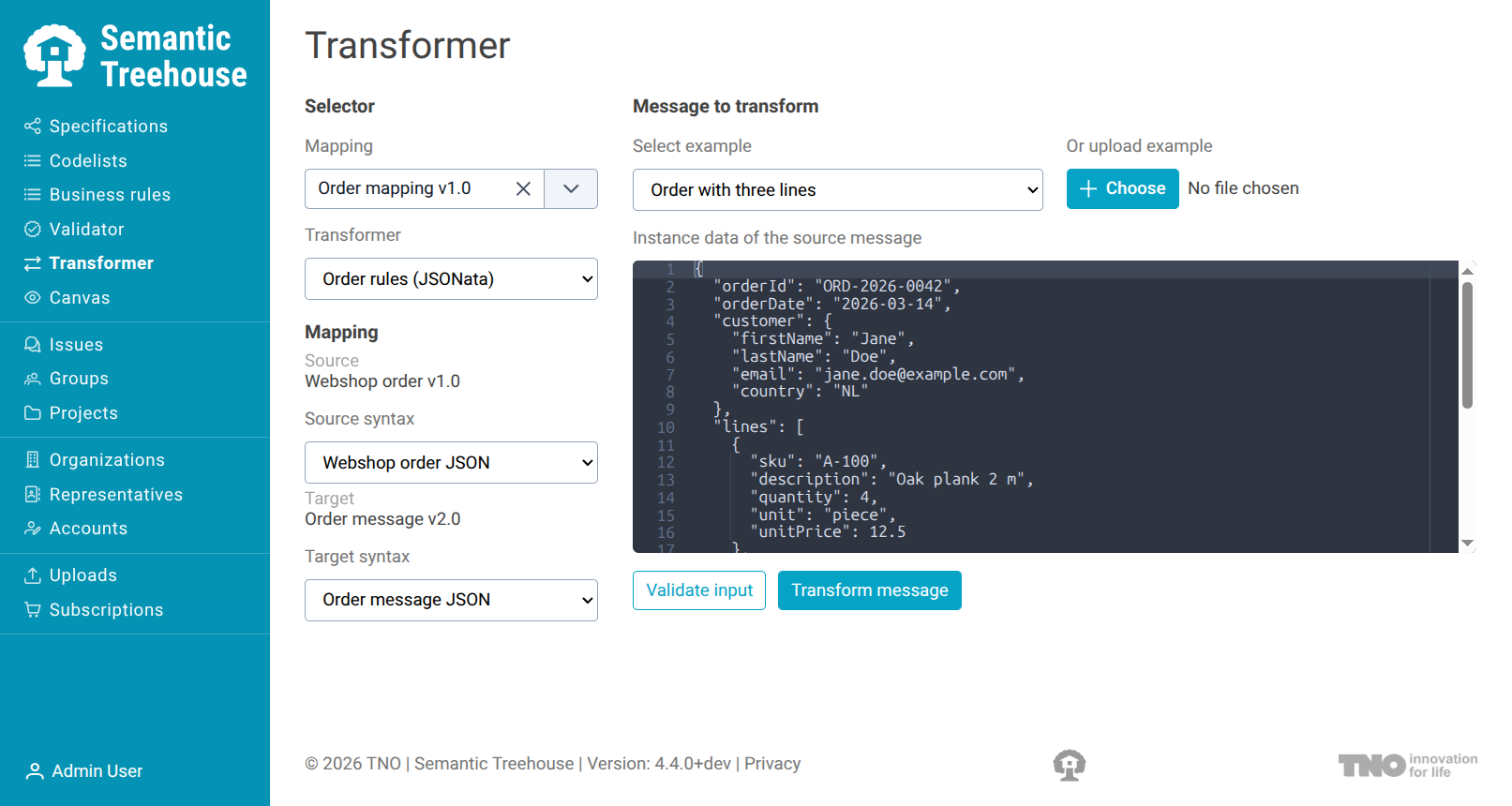
- In the left menu, click Transformer.
- Under Mapping, search for the mapping by the name of its specification and select a version. Only mappings with at least one enabled transformer are listed.
- If the mapping has more than one transformer, select the one to use under Transformer.
- Provide the message to transform. Select one of the examples under Select example, upload a file with Choose, or type or paste the message in the editor.
- Click Transform message.
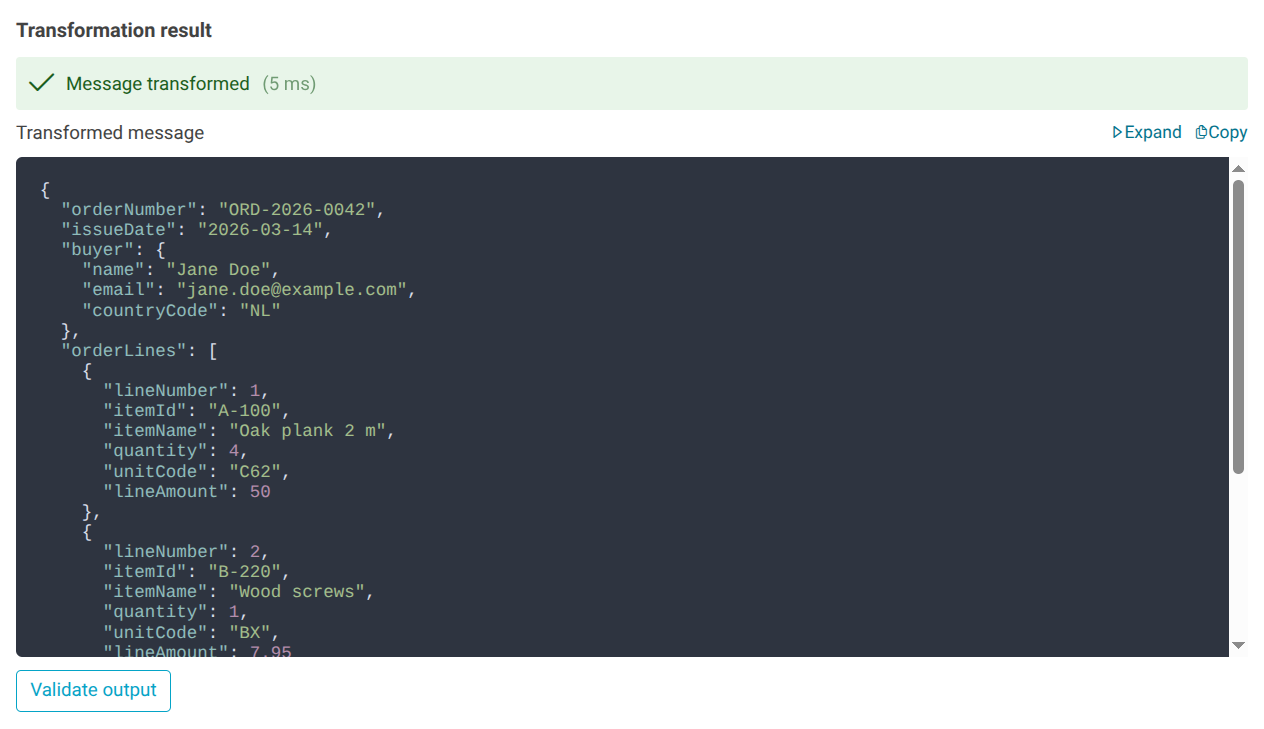
The result appears below the message. It shows the transformed message and the time the transformation took.
Validating the source and target message
The Transformer screen shows the source and target specification of the selected mapping. When these are message models, you can check both sides of the transformation:
- Validate input validates the message you provided against the syntax selected under Source syntax.
- Validate output validates the transformed message against the syntax selected under Target syntax.
The validation report is the same as the one of the Validator. A button is disabled when the message model has no syntax binding with the validator enabled.
Solving errors
When a message cannot be transformed, the result shows what went wrong:
| Error | Meaning |
|---|---|
| Invalid source message | The message is not valid JSON. |
| Invalid transformer rules | The rules contain a syntax error, such as a missing comma or bracket. The error names the part of the rules it stumbled on and its character position. |
| Transformation failed | The rules are valid, but could not be applied to this message. For example, a function received a text where it expects a number. |
A transformation that takes longer than 30 seconds is stopped.